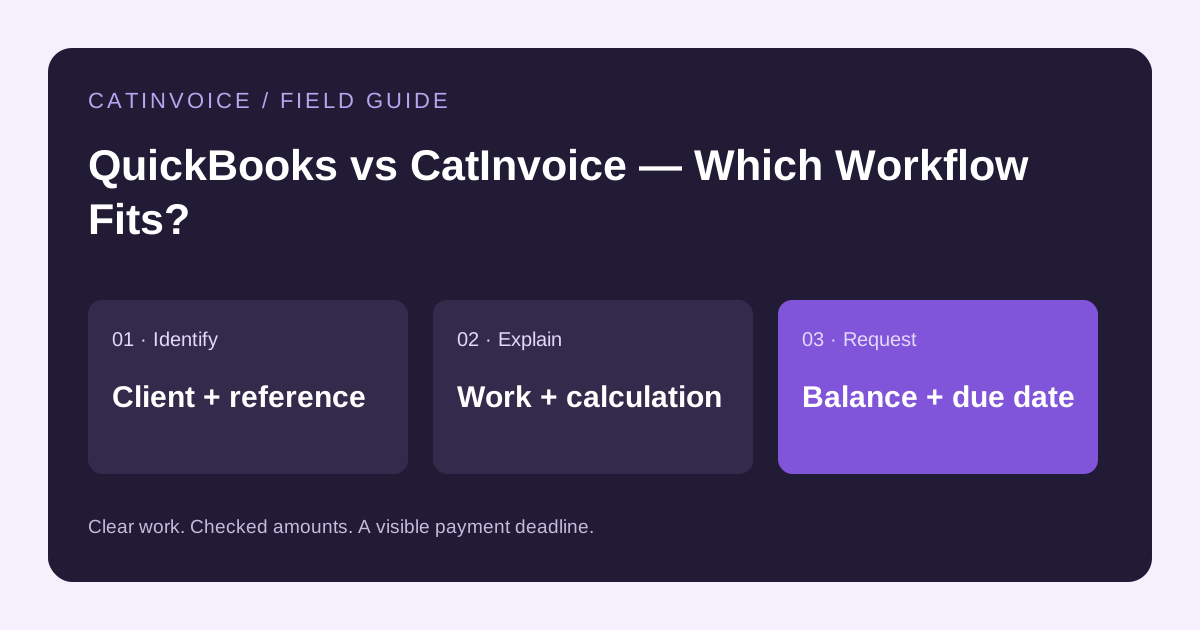
Choose CatInvoice when you want to prepare a PDF invoice without an account. Consider QuickBooks when you need bookkeeping, expense tracking and financial reporting. The right choice depends on the work you need to manage after creating the document.
Comparison disclosure
This article is published by CatInvoice. It compares workflow fit rather than claiming an independent product ranking. Product plans and availability vary; check the official product page before choosing a service.
Choose by workflow
| Need | CatInvoice | QuickBooks |
|---|---|---|
| Prepare a PDF without signup | Browser invoice editor and PDF export | Review its account-based workflow |
| Records and access | Locally saved browser records; export backups yourself | Online service with an account |
| Beyond the invoice document | Send the PDF and reconcile payments yourself | Review supported features, plan limits and regional availability |
When CatInvoice is a practical choice
You already have an agreed price, payment method and a place to track receipts. Enter the client and service details, review the calculation and download the invoice. No account is needed for this PDF workflow. Keep backups of local records; changing browsers does not automatically transfer them.
When QuickBooks is the better fit
You need accounting records and reporting alongside invoicing. Check the version sold in your region and which functions are included in the selected plan.
Test with your own billing process
Use a fictional invoice to check item descriptions, quantity and rate calculations, currency, discounts, applicable tax and a partial payment. Inspect the PDF on a phone and a printed page. Then test the features you will depend on after sending: record access, payment status, reminders or reporting. Do not assume a feature is present because a product can create invoices.
Check the official product details
Review the QuickBooks product information for current availability and limits. This comparison was reviewed on October 23, 2026. It intentionally avoids fixed price claims that vary by market, promotion and plan.
Prepare and keep your invoice
Create an invoice or choose an editable layout from the template library. Replace the sample details, check the preview and download the PDF. Send it using your own email, with supporting documents as separate attachments where needed.
See payment terms and due-date examples and the invoice tracking guide for the next steps. Save the PDF and a backup of any locally stored records.