
What is an invoice?
Understand invoice fields and the difference between an invoice, receipt and quote.
Tutorial
Follow the CatInvoice 2 workflow on desktop or mobile: enter details, review the preview, save a record and download a PDF. Use the worked example below to check your invoice.
Create invoice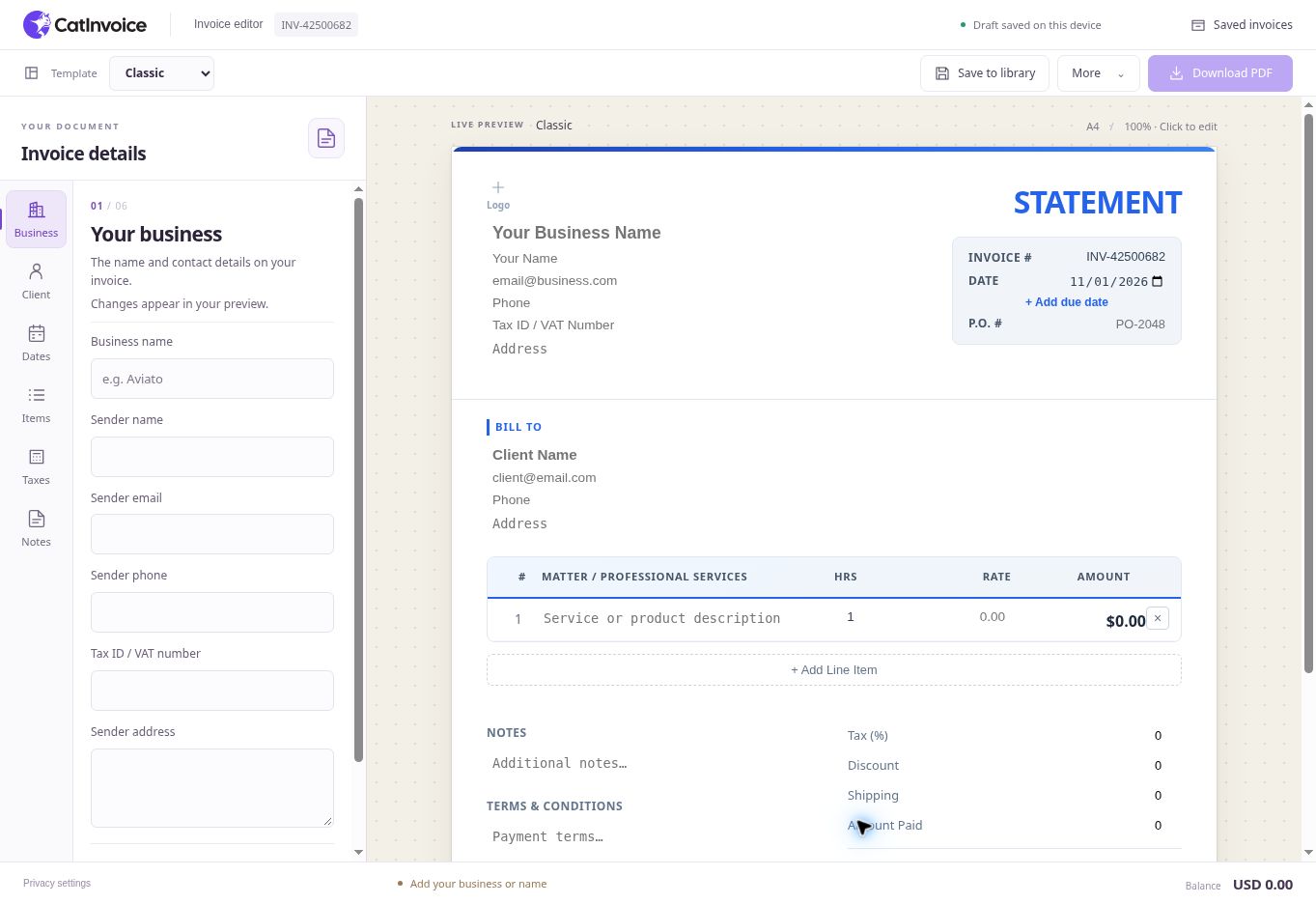
Open the editor to continue your current draft or begin an invoice. To replace a draft, choose More → New invoice and confirm. No account is needed.
Add your business or name, the client name, and one described line item with a quantity and rate.
Download PDF and Print invoice become available when the invoice is ready. The missing-information prompt takes you to the next field to complete; Save to library also checks these requirements.
On desktop, use the Business and Client sections on the left or type directly on the invoice. On mobile, enter details in Edit; Preview is for reviewing the document.
Add a business name, sender name, email, phone, address and tax ID. Expand Document options below the fields to add or remove your logo.
Add the client name, email, phone and billing address. Enable Ship-to in Document options to enter a separate shipping address.
Add one row for each service, product, material, fee, or milestone the client should understand.
Use language the client can connect to the agreed work, such as “Homepage design” or “On-site repair — 3 hours.”
Enter the number of hours, units or items and the price for each. CatInvoice recalculates every line amount. Add or remove rows to match the work you are billing.
Use the Dates and Taxes sections for the details that affect when and how much the client pays.
Check the invoice number and issue date, then add a due date, P.O. number, or payment terms if required.
Choose the currency, then add tax, a percentage or fixed discount, shipping, and any amount already paid.
Use the template selector above the workspace to switch layouts without losing invoice data. On mobile, tap Preview, use Fit for the page overview or 100% for details, and return to Edit to make changes.
Confirm who is billing whom, what was supplied, the dates, the total, the balance, and how the client should pay.
Review the logo, shipping address, notes, terms, payment instructions, pay-online link, and payment watermark.
Choose the output that matches how you work and keep a record if you will need the invoice again.
The current draft saves automatically, but it is separate from your invoice library. Choose Save to library, or More → Save to library on mobile, to keep a record. After editing an existing saved invoice, save it again to update that record.
Choose Download PDF, More → Print invoice, or More → Open email draft. The email action needs a client email address and does not attach the PDF; download and attach it yourself. The PDF shortcut is Ctrl+Shift+D on Windows/Linux or Command+Shift+D on Mac.
Two hours of logo refinements and three social graphics total $300. With a $100 deposit already paid, the remaining balance is $200.
| Work | Quantity | Rate | Amount |
|---|---|---|---|
| Logo refinements (hours) | 2 | $75.00 | $150.00 |
| Social media graphics | 3 | $50.00 | $150.00 |
| Invoice total | $300.00 | ||
| Amount paid | $100.00 | ||
| Balance due | $200.00 | ||
Use the descriptions and prices agreed with your client. Add a due date and payment instructions before sending your own invoice. Read payment-term examples and due-date calculations.
Confirm the business and client names, invoice number, date, line descriptions, quantities, rates, currency and balance due. Add a clear due date and the payment instructions agreed with your client. Download the PDF, open it and check that the complete invoice is readable before attaching it to your email.
Understand invoice fields and the difference between an invoice, receipt and quote.
Pick a layout that keeps your business details, itemized work and amount due easy to read.
Use clear payment wording, work out a due date and show a deposit or remaining balance.
No signup. No subscription. No watermark.